Basic PowerPoint: Step-by-Step Tutorial for Beginners
Introduction
This tutorial helps you create neat and professional presentations without stress. Follow the steps from scratch: start a new file, choose a theme, set layouts, add text & images, use SmartArt, apply transitions/animations as needed, practice presenting, and export. Ensure each slide has a clear structure so the audience can easily follow.
Requirements: PowerPoint 2019/2021/Microsoft 365 and 10–15 simple content slides (can be about company profile, products, or a short report).
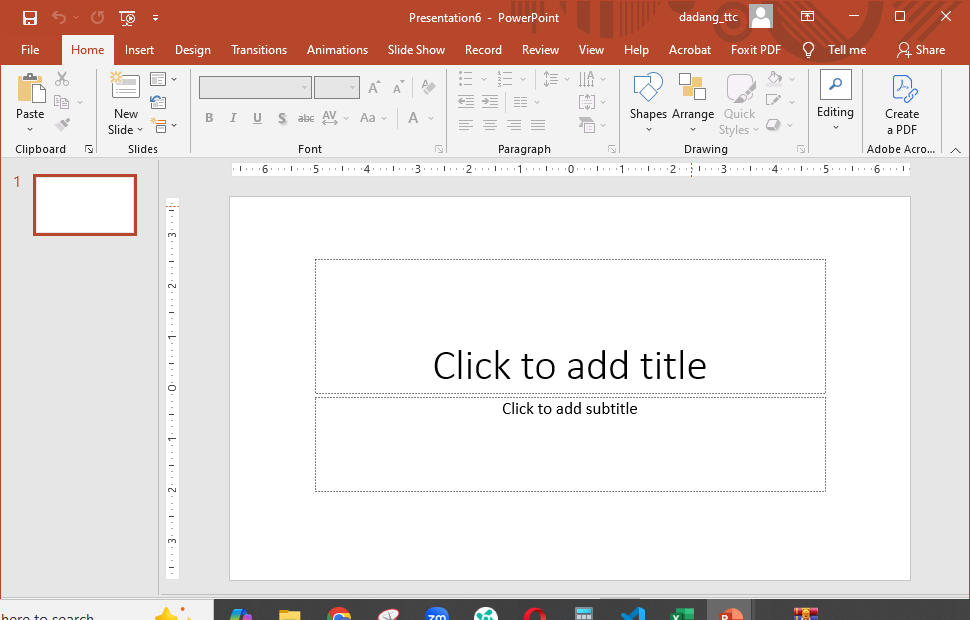
Step 1 — Create a New Presentation
- Open PowerPoint → select Blank Presentation.
- Save the file immediately: press Ctrl + S → give it a name, e.g., First-Presentation.pptx.
- Set an easy-to-access storage location (e.g., Desktop or Documents).
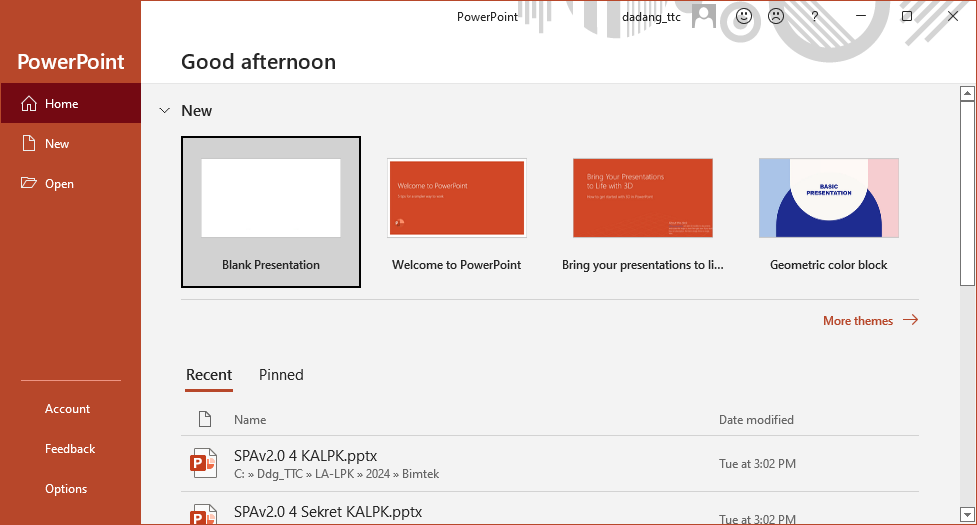
Note: Make it a habit to save frequently (Ctrl+S) to avoid losing progress.
Step 2 — Choose Theme & Layout
- Go to the Design tab → select a simple Theme (e.g., Office or Ion).
- Adjust colors in Variants if needed.
- Set slide size: Design → Slide Size → Widescreen (16:9) (commonly used).
- Use Layout to select the layout per slide (Title, Title and Content, Two Content, etc.).
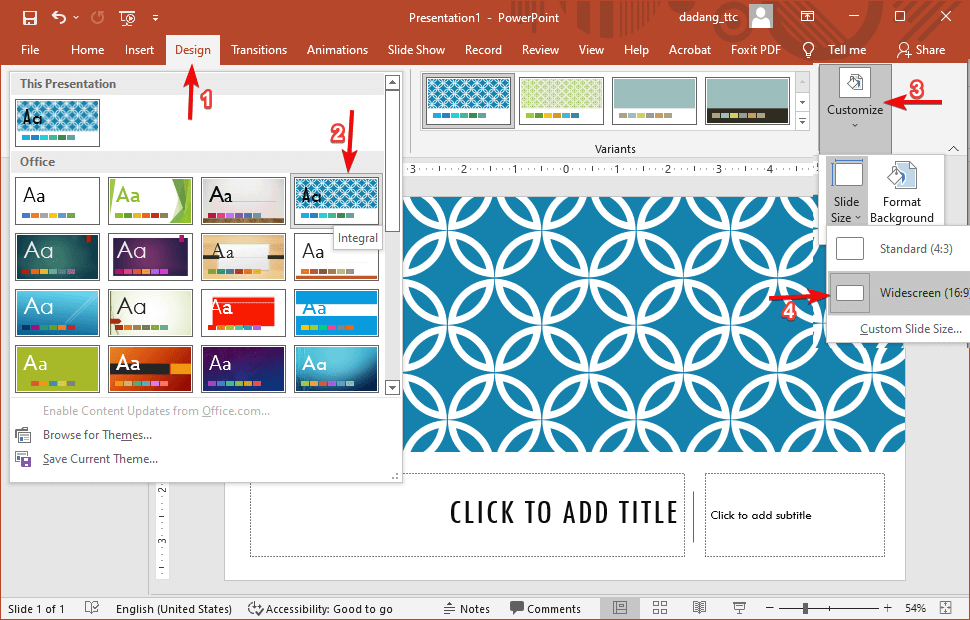
Visual tip: Use a maximum of 2–3 primary colors, 1 title font, and 1 body font for consistency and readability.
Step 3 — Add Text & Images
- On Slide 1, click Click to add title → type your presentation title.
- Add a subtitle/speaker name in Click to add subtitle.
- To add text to other slides: Insert → Text Box then type your content.
- Insert images: Insert → Pictures → select image file → use Picture Styles for simple frames.
- Use Align (Format → Align) to precisely position objects.
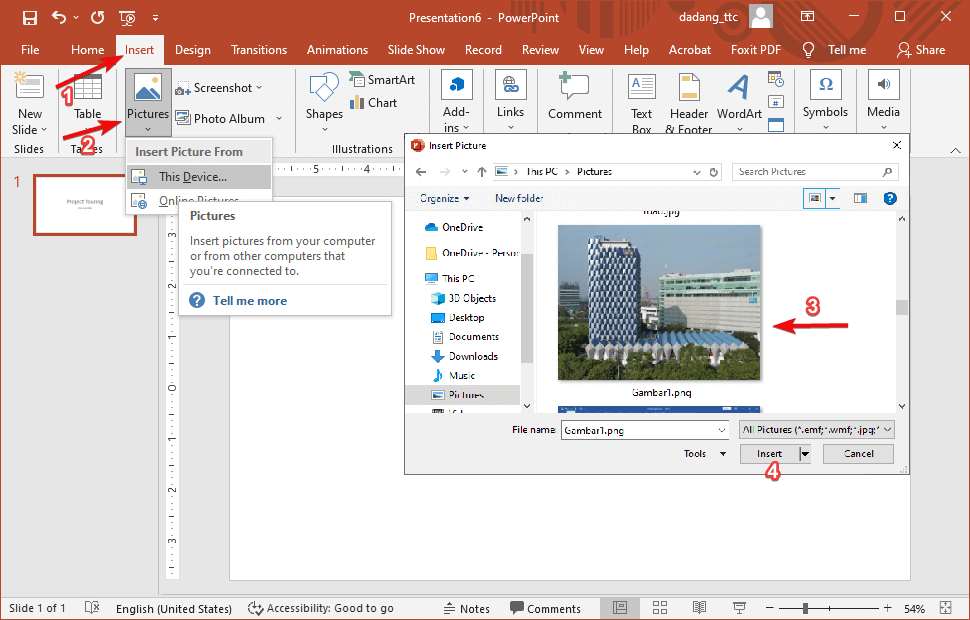
Readability standard: Title 32–44 pt, body 20–28 pt, sufficient spacing. Avoid long paragraphs; use bullet points with 5–7 words per line.
Step 4 — Use SmartArt for Diagrams
- Select a new slide → Insert → SmartArt.
- Choose the appropriate type: Process for flows, Cycle for cycles, Hierarchy for structures.
- Enter text via the left panel or directly on the shapes.
- Adjust colors: SmartArt Design → Change Colors.
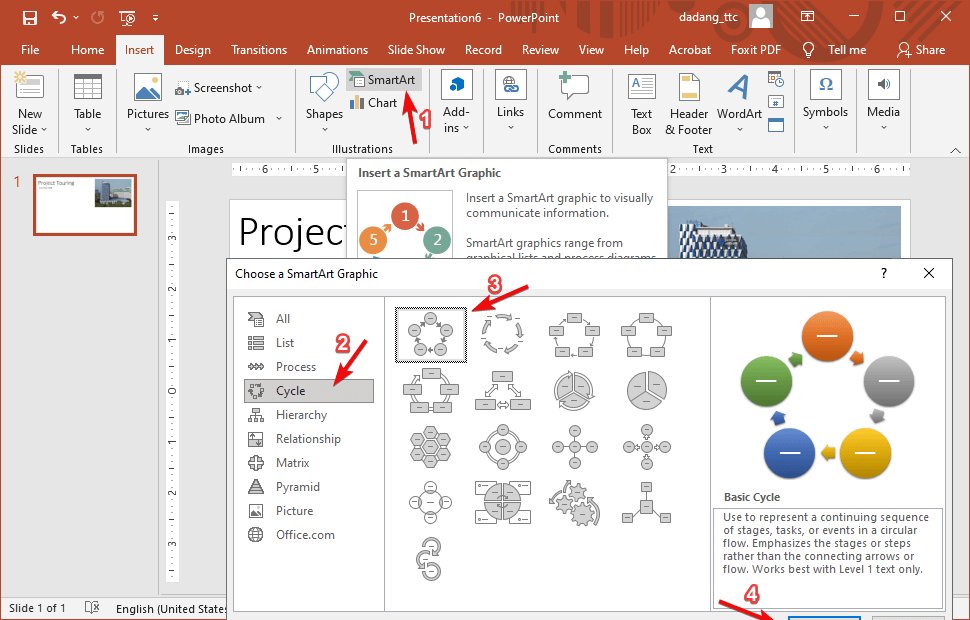
Content tip: Use 3–6 steps to keep it concise. If too complex, split into 2 slides.
Step 5 — Transitions vs Animations
Transitions (between slides)
- Go to the Transitions tab → choose a simple effect like Fade.
- Set duration (1.0–1.5 s). Click Apply To All for consistency.
Animations (per object)
- Select an object (text/image) → Animations tab → choose Fade or Wipe.
- Open Animation Pane to set order & timing (Start: On Click/With Previous/After Previous).
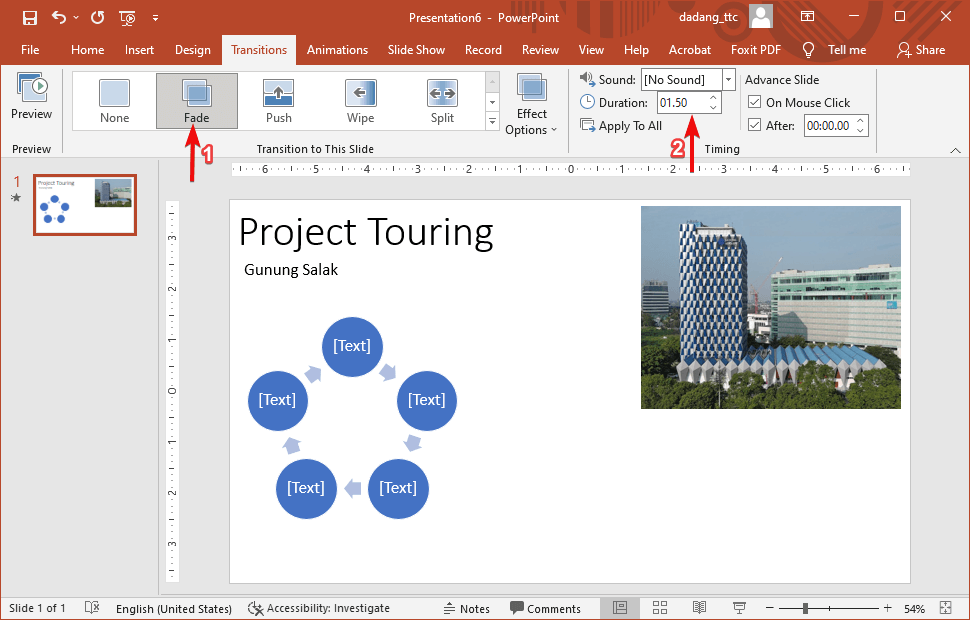
Avoid overdoing it: Excessive effects tire the audience. Prioritize readability & speaking pace.
Step 6 — Slide Master for Consistency
- Open View → Slide Master.
- Adjust fonts, colors, and placeholder positions in the Master or used Layout.
- Close Slide Master (Close Master View). Changes will apply to all associated slides.
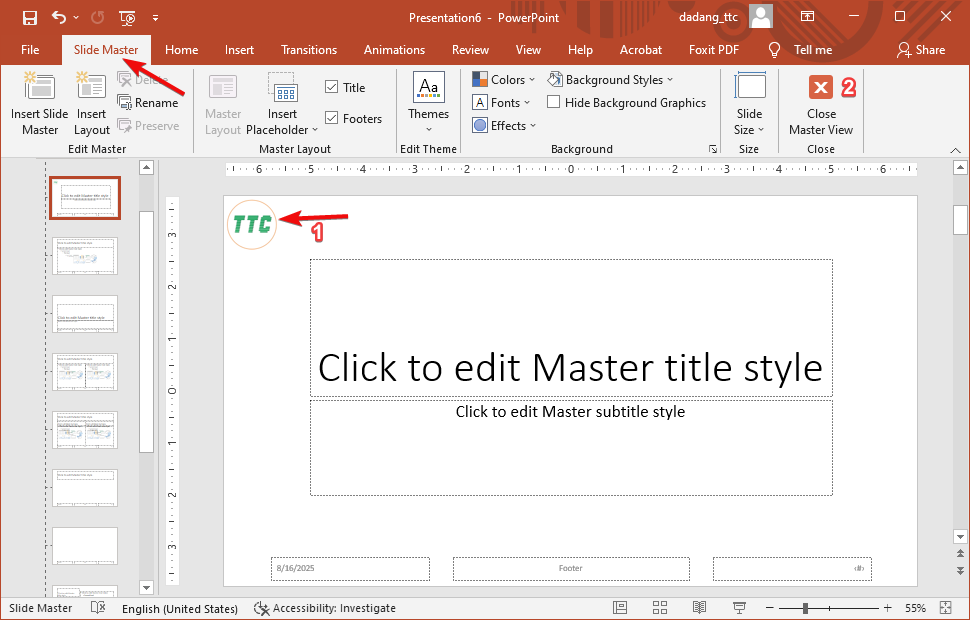
When to use: If presentation >10 slides or reused frequently. Saves reformatting time.
Step 7 — Slide Show & Presenter View
- Start presentation: press F5 (from start) or Shift+F5 (from current slide).
- Use Presenter View to see notes & time without the audience seeing them.
- Quick navigation: N/→ for next, P/← for previous, B for black screen.
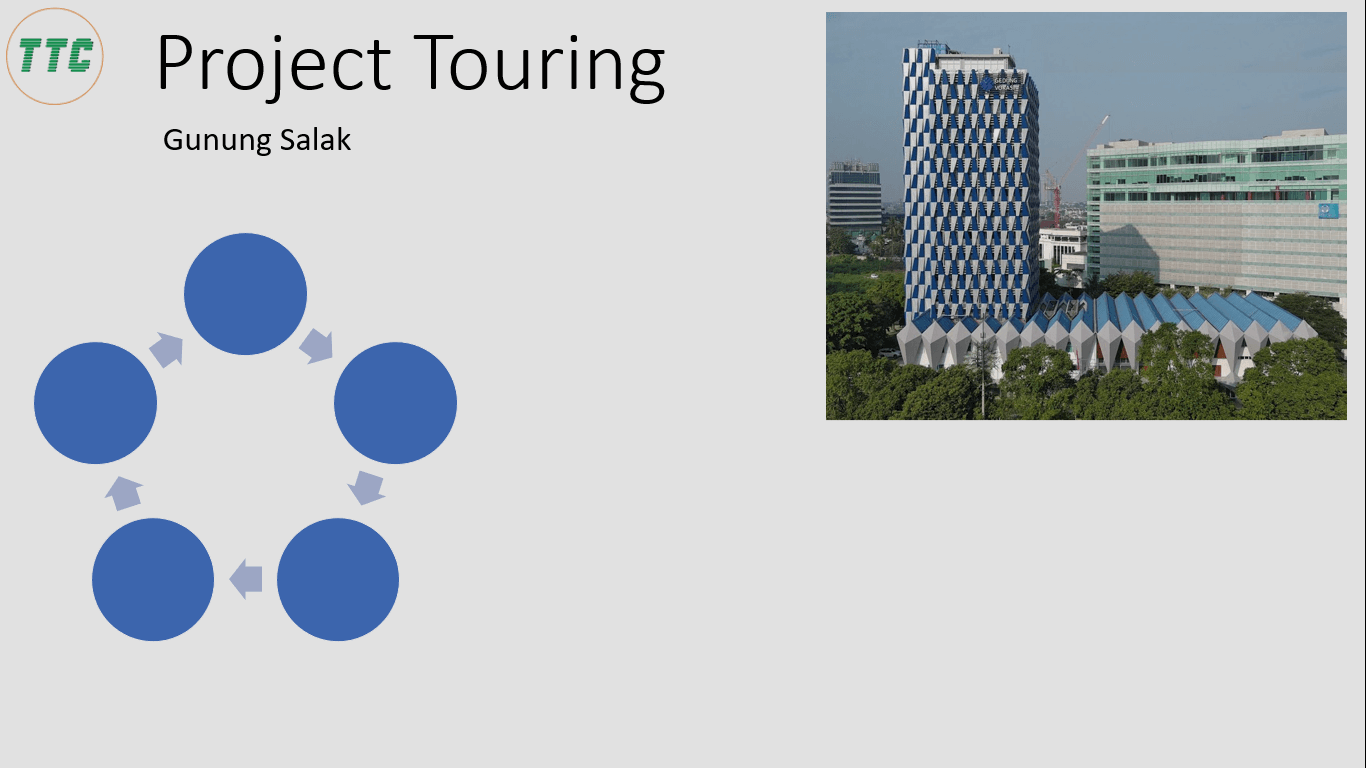
Practice: Record your rehearsal: Slide Show → Rehearse Timings. Helps maintain pace and duration.
Step 8 — Export to PDF/Video
- PDF: File → Export → Create PDF/XPS → select Standard for printing, Minimum size for email.
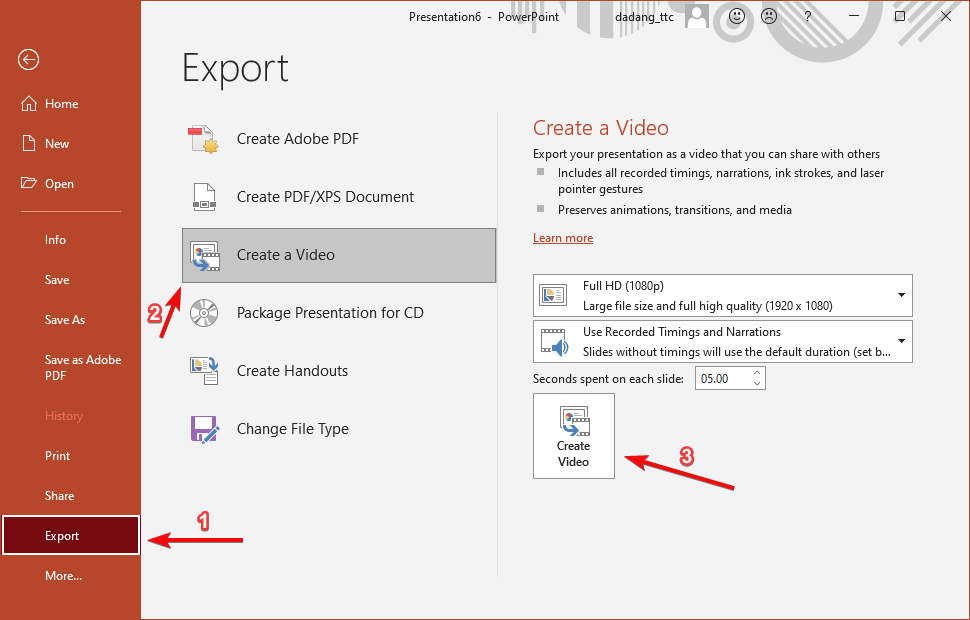
- Video: File → Export → Create a Video → select 1080p → Use Recorded Timings and Narrations if any.
- Image: File → Save As → PNG/JPG to export selected slides as images.
Practice & Template
Build an 8–10 slide deck for a Business Profile using the following structure:
- Title & tagline
- The problem you solve
- Key products/services (max. 3)
- Process/Workflow (SmartArt – Process)
- Short testimonials/portfolio
- Core team
- Plan/Next steps
- Contact
Quality checklist: consistent fonts & colors, tidy margins, no tiny text, images are crisp, 7–10 minute delivery.
Quick FAQ
Ideal font size?
Titles 32–44 pt, body 20–28 pt. Ensure readability from 3–5 meters.
Are animations required?
No. Use them sparingly to guide attention, not to “show off.”
File too large?
Use Compress Pictures, replace overly large images, remove unused hidden slides.
Want to Learn Microsoft Office and Computer Skills for Free?
Visit our complete guides and join free classes from TTC: